
FIRST-INSTALL ERRORS
Fix HappyMod “App Not Installed” or “Parse Error”
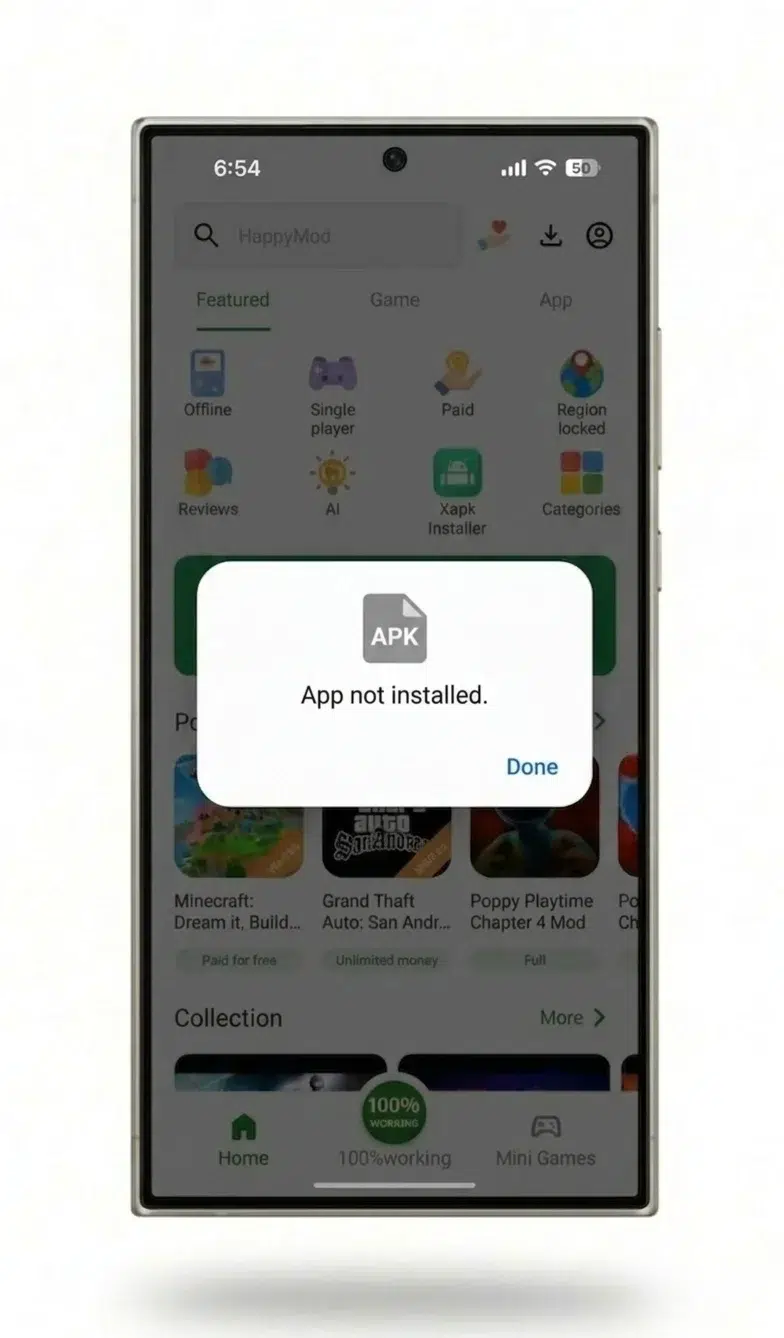
Two different error messages block a first-time HappyMod install, and each one points to a different cause. “App Not Installed” appears after Android accepts the file and starts installing, then rejects it — usually a leftover certificate record or insufficient storage. “Parse Error” appears earlier, while Android is still reading the file, and means the file itself or the Android version can’t be processed. Matching the exact message to the right section below skips the guesswork.

Key Facts
App Not Installed
Usually a leftover certificate record
Parse Error
Usually an incomplete or renamed file
Fix that’s often skipped
Clear Package Installer’s own cache
Android version needed
5.0 or newer
This page covers
First installs only — not update failures
These fixes are for a first-time install on a device that’s never had HappyMod before. An update that fails, or a HappyMod install that breaks partway through updating to a newer version, is a different problem — see the HappyMod not working diagnostic to route to the right fix.
How to Tell the Two Errors Apart
The moment each error appears is the fastest way to self-diagnose. “App Not Installed” shows up after tapping Install, once Android has already started unpacking the file — the file itself opened fine, but something about the install attempt failed. “Parse Error” shows up before that, the instant the file is tapped, because Android couldn’t even read it as a valid package. If the install prompt never appeared at all, the file is the problem — go to Parse Error. If the install prompt appeared and then failed, the device state is the problem — go to App Not Installed.
App Not Installed
Appears AFTER the install prompt starts — Android accepted the file, then rejected the install attempt. The device state is the problem.
Parse Error
Appears BEFORE the install prompt even shows — Android couldn’t read the file as a valid package. The file itself is the problem.
Why Does HappyMod Say “App Not Installed”?
Two causes account for most “App Not Installed” failures on a first-time install: a leftover certificate record from an earlier install attempt, and insufficient free storage.
Fix a certificate conflict
Android’s package manager stores the signing certificate — a fixed identifier tied to the specific file that was installed — for every app, including one that was only partially installed or was uninstalled afterward. If an earlier attempt to install HappyMod (even one that failed, or one that used a different download) left a certificate record behind, a new install attempt is compared against that leftover record and rejected when it doesn’t match, even from a correctly downloaded file. Uninstalling the app icon does not clear this record — it stays in the package manager database independent of whether the app itself is currently installed.
Three steps clear it:
Uninstall any current version of HappyMod
If any version of HappyMod currently shows in the app drawer: Settings > Apps > HappyMod > Uninstall.
Clear the Package Installer’s own cache — this is the step most often skipped
This is where the stale certificate reference is held: Settings > Apps > Package Installer > Storage > Clear Cache.
Download the file again and install it fresh
Without renaming it.
Skipping step 2 is the most common reason this fix appears not to work — clearing the HappyMod app’s own cache or uninstalling a second time does not touch the Package Installer’s separate cache, so the same certificate conflict repeats on the next attempt.
Fix insufficient storage
Android needs free space beyond the file’s own size to unpack it during installation, so a device that looks like it has “just enough” storage can still fail. Check available space at Settings > Storage, free space until the total is comfortably above the file size shown on the download page, then reattempt the install.
Why Does HappyMod Show a Parse Error?
A Parse Error means Android tried to read the file as an installable package and failed before installation started. Three causes produce it: an incomplete download, a renamed file, or an Android version below what the app requires.
Confirm the download finished
An interrupted download leaves a file that is smaller than the real one, and Android cannot parse an incomplete package — it fails instantly rather than installing a partial app. Open the device’s file manager, check the Downloads folder, and compare the file size against the size shown on the download page. A smaller file means the download didn’t finish. Delete it, clear the browser’s download cache, and redownload on a stable connection before trying again.
Check whether the filename changed
Android’s package installer checks the APK filename as part of confirming the file is what it claims to be, and Chrome and Samsung Internet both automatically append text to a filename when a file of the same name already exists in Downloads — turning happymod.apk into happymod (1).apk, for example. That renamed file can trigger a Parse Error even when its contents are unchanged. Check the Downloads folder for a modified filename; renaming it back to the original, or deleting it and downloading fresh into an empty Downloads folder, resolves this.
Check the Android version
HappyMod’s current release requires Android 5.0 or newer; a device running an older build rejects the file at the parsing stage rather than showing a compatibility warning first. Check the installed version at Settings > About Phone > Android Version. A device on Android 5.0 through 7.1 that shows other Parse Error symptoms should confirm it’s running a build listed as supported for that range in the version archive, rather than the current release.
Unknown Sources Is Enabled, but the Install Still Fails
This means one of two things: the permission was granted to the wrong app, or a newer Android security screen is sitting underneath a permission that already looks enabled.
Match the permission to the app that downloaded the file
Since Android 8, “install unknown apps” is granted per app, not device-wide — the browser or file manager that downloaded the APK is the one that needs the permission, and enabling it for a different browser does nothing. Confirm which app downloaded the file, then go to Settings > Apps > Special App Access > Install Unknown Apps and toggle the permission for that specific app.
Clear a Restricted Settings block (Android 13 and newer)
Android 13 introduced a Restricted Settings screen that can sit underneath the standard unknown-sources toggle for apps installed outside the Play Store: the toggle can show as enabled while the install still gets blocked. Where this appears, it shows up as an extra step inside the same permissions screen — a menu option (commonly a three-dot menu in the top corner) offering to allow the restricted permission for that specific app. This is a general Android 13+ platform behavior, not limited to one manufacturer’s overlay, and the exact menu wording varies slightly by device.
Manufacturer-Specific Unknown-Sources Paths
The setting lives in a different menu location depending on the device’s interface layer. Four confirmed paths:
Samsung One UI
Settings > Apps > [browser/file manager] > Install unknown apps.
Xiaomi MIUI / HyperOS
Settings > Apps > Manage apps > [browser/file manager] > Install unknown apps.
OnePlus OxygenOS
Settings > Apps & notifications > [browser/file manager] > Advanced > Install unknown apps.
Realme UI
Settings > App management > [browser/file manager] > Install unknown apps.
If the exact wording doesn’t match what’s on screen, search “install unknown apps” or “installation sources” directly in the device’s settings search bar — manufacturer UI versions rename this setting periodically.
Frequently Asked Questions
Does uninstalling HappyMod before reinstalling clear a certificate conflict?
No. Uninstalling removes the app itself but not the certificate record Android’s package manager keeps separately. Clearing the Package Installer’s cache (Settings > Apps > Package Installer > Storage > Clear Cache) is the step that actually removes the stale record.
Does a Parse Error mean the downloaded file is unsafe?
No. A Parse Error means Android couldn’t read the file as a package — most often from an incomplete download or a renamed file — not that the file contains anything harmful. For how to check a file’s integrity, see the APK verification guide.
Is a specific amount of free storage required before installing?
Yes — free space beyond the file’s own size is needed for Android to unpack it during setup. The exact figure is on the install guide’s system requirements.
Does the unknown-sources permission need to stay enabled after installing?
No. It only needs to be active for the moment of installation and can be turned off again immediately afterward.
Does an update failure show the same errors as a first-install failure?
No. “App Not Installed” and “Parse Error” are first-install failures. A failure partway through updating to a newer version has different causes — see the full troubleshooting diagnostic to reach the update-error fixes.
Where to Go Next
For the full install walkthrough on a device that doesn’t have HappyMod yet, see the installation guide. For the HappyMod platform overview and safety breakdown, see the hub page.