DESKTOP / EMULATOR SETUP
HappyMod for PC — How to Install on Windows and Mac
HappyMod does not ship a Windows or Mac application. The APK it distributes is built for Android, so running it on a computer means installing an Android emulator — software that creates an Android environment on the desktop where the APK can install and run.
Key Facts
Native app
None — Android APK only; needs an emulator
Emulators
BlueStacks 5, BlueStacks Air, LDPlayer, NoxPlayer, MEmu
Apple Silicon (M1–M4)
BlueStacks Air only
WSA (Windows built-in)
Discontinued March 5, 2025
Install method
Drag the APK onto the emulator window
Why Doesn’t HappyMod Have a Native Windows or Mac Version?
HappyMod’s APK format is built for Android’s operating system, not Windows or macOS — the two use incompatible app-packaging systems, the same underlying reason an Android phone app cannot run directly on a desktop OS without a translation layer. An emulator resolves this by running a full Android environment inside a window on the desktop, so the Android-native APK has an actual Android system to install into.
Windows Subsystem for Android — closed in 2025
One path that used to reduce this friction on Windows closed in 2025. Windows Subsystem for Android (WSA), Microsoft’s own built-in Android-app layer for Windows 11, stopped accepting new installs and lost official support on March 5, 2025. Installs already present before that date kept running but stopped receiving updates. An emulator is now the only current, maintained route to running an Android APK like HappyMod on a Windows or Mac computer.
Choosing an Android Emulator for HappyMod
Four emulators are current and actively maintained. None is officially tied to HappyMod — each is a general-purpose Android emulator that HappyMod’s APK installs into the same way any other Android app would.
BlueStacks 5
Runs on Windows and Intel-based Mac computers. Minimum 4 GB RAM, 8 GB recommended, per BlueStacks’s own system-requirements documentation. Does not run on Apple Silicon (M1 through M4) Macs.
BlueStacks Air
A separate BlueStacks product built specifically for Apple Silicon Macs, launched in December 2024. This is the correct BlueStacks option for an M1, M2, M3, or M4 Mac; BlueStacks 5 is not.
LDPlayer
Windows only, no native Mac build. Minimum 2 GB RAM, 8 GB recommended, plus 36 GB of free disk space, per LDPlayer’s own published requirements. Intel VT-x or AMD-V virtualization must be enabled.
NoxPlayer
Runs on Windows and Intel-based Mac computers. Minimum 2 GB RAM on Windows, 4 GB or more recommended, per NoxPlayer’s official system-requirements page. That same page confirms NoxPlayer does not run on Apple M1/M2 Macs.
MEmu
Windows only. MEmu’s own documentation lists a lower entry point of 2 GB RAM (4 GB or more recommended) alongside a higher-performance tier calling for 8 GB RAM and DirectX 11 support. Still receiving updates as of 2026.
Apple Silicon Mac owners have exactly one native-chip option in this set: BlueStacks Air. Every other emulator here — BlueStacks 5, LDPlayer, NoxPlayer, MEmu — either requires an Intel Mac or runs on Windows only.
System Requirements to Run an Emulator
The numbers below come directly from each emulator’s own published system requirements, not from a blended estimate. Meeting the emulator’s own minimum does not guarantee HappyMod’s catalog and any installed mod both run smoothly — the emulator has to boot and render Android first, and the mod runs inside that on top of it.
BlueStacks 5
Platform: Windows, Intel Mac
Minimum RAM: 4 GB
Recommended RAM: 8 GB
Notes: No Apple Silicon support
BlueStacks Air
Platform: Apple Silicon Mac
Minimum RAM: Not published as a fixed minimum
Recommended RAM: —
Notes: Built for M1-M4 chips
LDPlayer
Platform: Windows only
Minimum RAM: 2 GB
Recommended RAM: 8 GB
Notes: 36 GB free disk space; VT-x/AMD-V required
NoxPlayer
Platform: Windows, Intel Mac
Minimum RAM: 2 GB
Recommended RAM: 4 GB+
Notes: No Apple Silicon (M1/M2) support
MEmu
Platform: Windows only
Minimum RAM: 2 GB
Recommended RAM: 8 GB
Notes: Higher tier needs DirectX 11
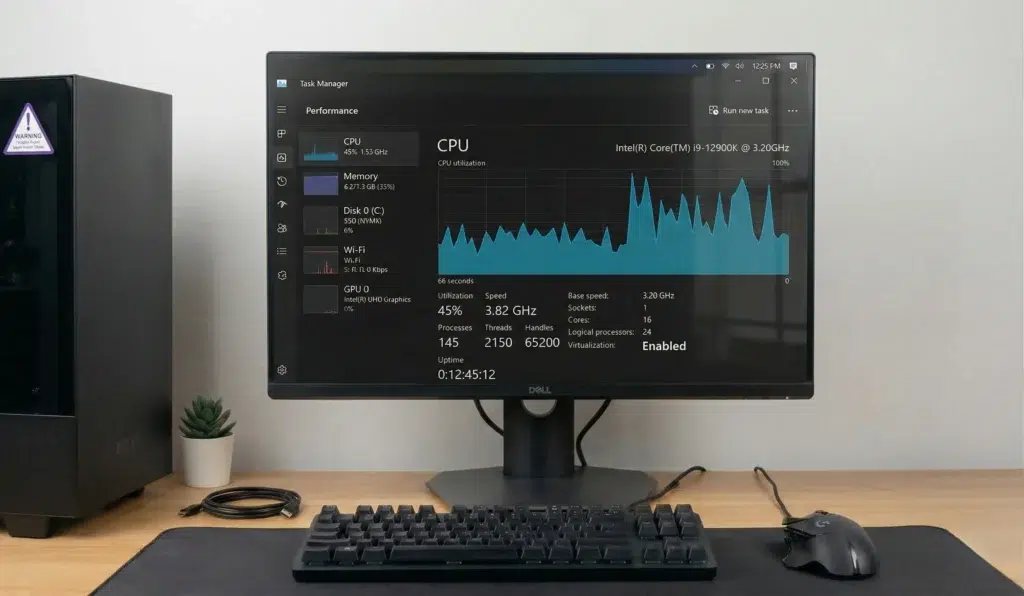
All four Windows-based emulators need CPU virtualization (Intel VT-x or AMD-V) enabled in the BIOS or UEFI settings — most current motherboards ship with it turned off by default. It sits under a name like “Virtualization Technology,” “Intel VT-x,” or “SVM Mode” depending on the motherboard maker, inside the CPU or Advanced settings menu of the BIOS/UEFI screen.
How to Install HappyMod Inside BlueStacks
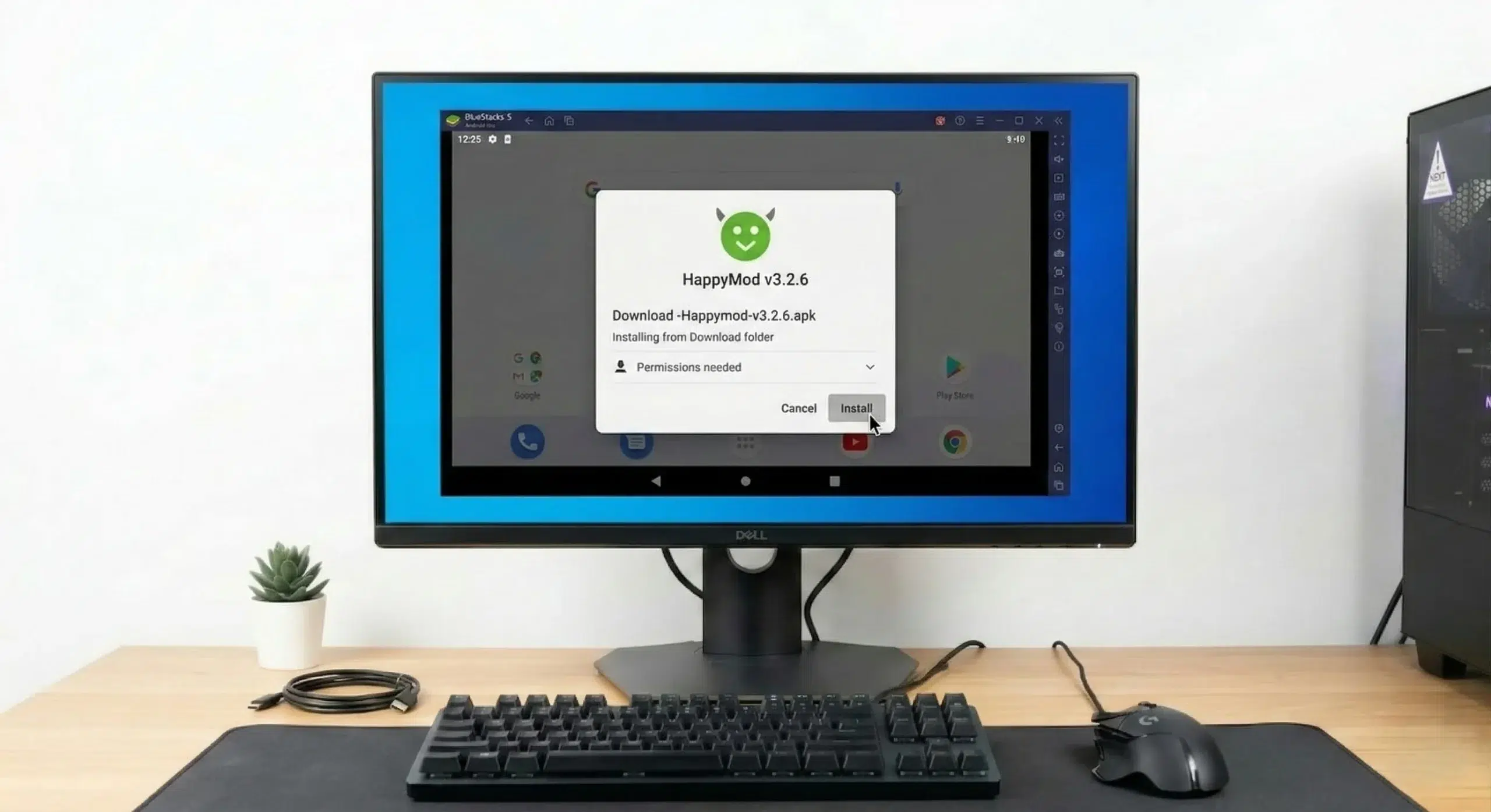
BlueStacks 5 is the most widely used of the four, so the steps below cover it directly; the same drag-and-drop pattern applies to LDPlayer, NoxPlayer, and MEmu with each program’s own window in place of BlueStacks’s.
Install BlueStacks 5
from its own installer for Windows or Intel Mac (or BlueStacks Air for Apple Silicon Mac), and complete its first-launch setup.
Download the HappyMod APK
to the computer using a browser inside or outside the emulator.
Drag the downloaded APK file directly onto the open BlueStacks window.
BlueStacks detects the file and starts the install automatically; no separate “install APK” button is required for this step.
Confirm the Android install prompt
that appears inside the emulator window, the same confirmation step a phone shows during a sideloaded install.
Open HappyMod from the BlueStacks home screen
once installation finishes and confirm the catalog loads.
For the current APK file, its size, and the underlying installation prompts and permissions, see the Download & Version guide.
Performance and Compatibility Caveats vs. Native Android
Running HappyMod inside an emulator is not identical to running it on an actual Android phone, and the differences have specific, checkable causes rather than a vague “may run slower.”
Push notifications are unreliable
Most emulators don’t maintain the persistent background Google Play services connection a real phone keeps active, so a modded app’s notifications need to be checked manually inside the emulator window rather than relying on a system alert.
Background downloads can pause
When the emulator window isn’t visible or active, an emulator running in the background throttles or suspends app activity to save host-system resources, the same way a phone throttles a backgrounded app to save battery — except triggered by window focus instead of screen state.
ARM-native mods can fail
Most Android emulators translate ARM instructions to run on a PC’s x86 or x64 processor; a mod that embeds ARM-compiled native libraries directly (a pattern found in heavily modified games) can crash or fail to load during that translation step even when the same file runs cleanly on an actual ARM-based Android phone.
Downloaded files stay inside the emulator
Files downloaded inside the emulator stay inside its virtual Android storage and don’t appear in the host computer’s own Windows or Mac file system — moving a file out requires the emulator’s own file-sharing or transfer feature, not a normal drag from a desktop folder.
None of these caveats affects whether HappyMod itself installs — they affect specific behaviors after installation, and the fix for each is emulator-side (checking notifications manually, keeping the window active, testing a different mod variant if one crashes) rather than a sign the install failed.
Frequently Asked Questions
Can HappyMod run on a PC without an emulator?
Not currently. Windows Subsystem for Android, the one built-in alternative, stopped accepting new installs on March 5, 2025, and Microsoft no longer supports it. An emulator is the remaining maintained path on both Windows and Mac.
Which emulator uses the least RAM?
LDPlayer, NoxPlayer, and MEmu each publish a 2 GB minimum, lower than BlueStacks 5’s published 4 GB minimum — though each vendor’s own recommended figure (4-8 GB depending on the program) still applies for smoother catalog browsing and mod installs.
Does HappyMod work on an M1 or M2 Mac?
Only through BlueStacks Air, the one emulator in this set built for Apple Silicon. BlueStacks 5 and NoxPlayer both require an Intel Mac; LDPlayer and MEmu don’t publish a Mac build at all.
Why does the HappyMod catalog show as empty inside an emulator?
Two causes account for most reports: CPU virtualization disabled in the BIOS/UEFI (the emulator needs it to run Android correctly) or the emulator’s virtual network adapter disconnected, which blocks the catalog from loading over the internet connection.
Do downloaded mods appear on the Windows or Mac desktop?
No. Files stay inside the emulator’s own virtual Android storage and need the emulator’s file-transfer or shared-folder feature to move to the host computer.
Where to Go Next
For the current HappyMod APK, its file size, and the full Android-side install and permission steps, see the Android install guide. For the HappyMod platform overview and safety breakdown, see the hub page.