
How to Download HappyMod APK for Android
HappyMod distributes its Android app store as a direct APK file rather than through the Google Play Store. Installing it takes five steps: download the file, enable installation from outside the Play Store, open the file, complete the install prompt, and confirm it launched correctly. The walkthrough below covers Android version requirements, manufacturer-specific settings paths, and what to check after installing. For the full HappyMod overview and safety breakdown, see the hub page.

Key Details
Current version
v3.4.6
File size
~20 MB APK
Root required
No
Tested Android range
8.0 through 14
Tested devices
Samsung Galaxy A54, Redmi Note 12, OnePlus 12, Realme 11 Pro
Version notes
the current release is v3.4.6. Older builds (v3.2.6 through v3.4.0) are still circulating on other download sites — see the full HappyMod version history for release dates and rollback steps if an older build is needed for compatibility.
What Are the System Requirements for HappyMod?
Android 8.0 through 14 run the app without the catalog-loading slowdowns that appear on Android 5.0-7.1. Devices on that older range should install an older HappyMod version instead.
Four conditions before installing
How Do You Enable Unknown Sources on Android?
Because the APK installs outside the Google Play Store, Android blocks it by default until the setting that allows outside installs is turned on for the specific app doing the installing (the browser or file manager). On Android 10 through 14, the path is Settings > Apps > Special App Access > Install Unknown Apps, then selecting the browser or file manager and toggling the permission on. This grant is per-app, not global — enabling it for one browser doesn’t enable it for another. Android 14 adds one extra confirmation screen compared to earlier versions; expect a second tap to proceed.
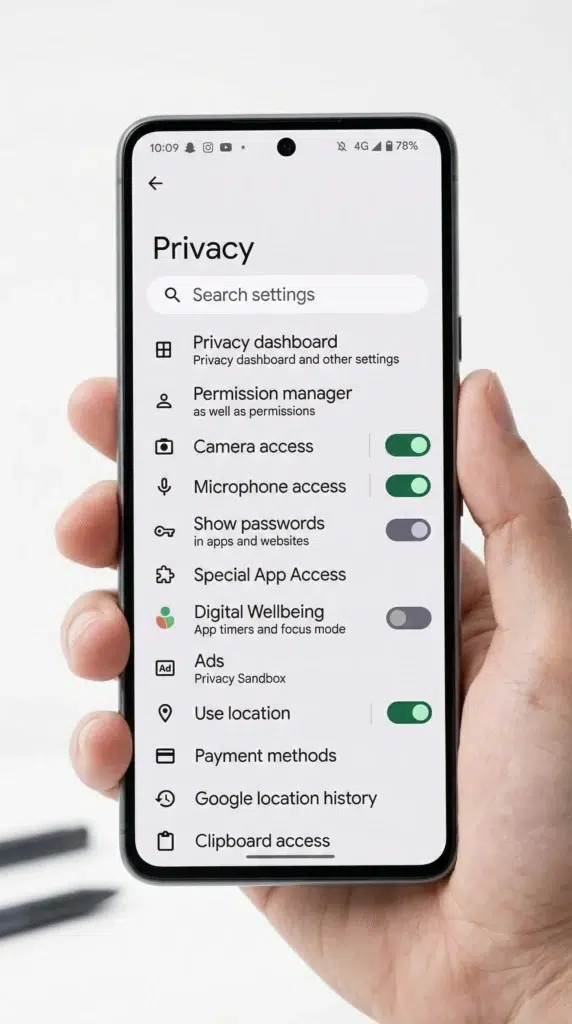
What Is the Unknown Source Path by Manufacturer?
The setting above lives in a different menu location depending on the device’s manufacturer UI layer. Four confirmed paths:
Samsung One UI
Settings > Apps > [browser/file manager] > Install unknown apps.
Xiaomi MIUI & HyperOS
Settings > Apps > Manage apps > [browser/file manager] > Install unknown apps — HyperOS occasionally nests this one level deeper under Permissions.
OnePlus OxygenOS
Settings > Apps & notifications > [browser/file manager] > Advanced > Install unknown apps.
Realme UI
Settings > App management > [browser/file manager] > Install unknown apps.
How Do You Install the HappyMod APK?
Five steps once the file is downloaded and unknown sources is enabled:
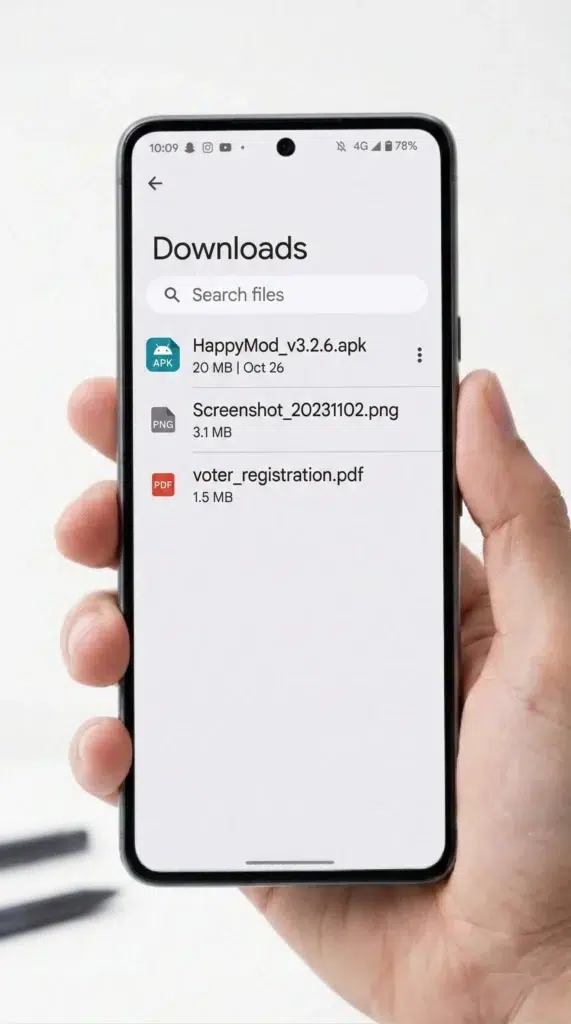
Locate the downloaded file
in the device’s Downloads folder or the browser’s download notification.
Tap the APK file
to begin the install prompt.
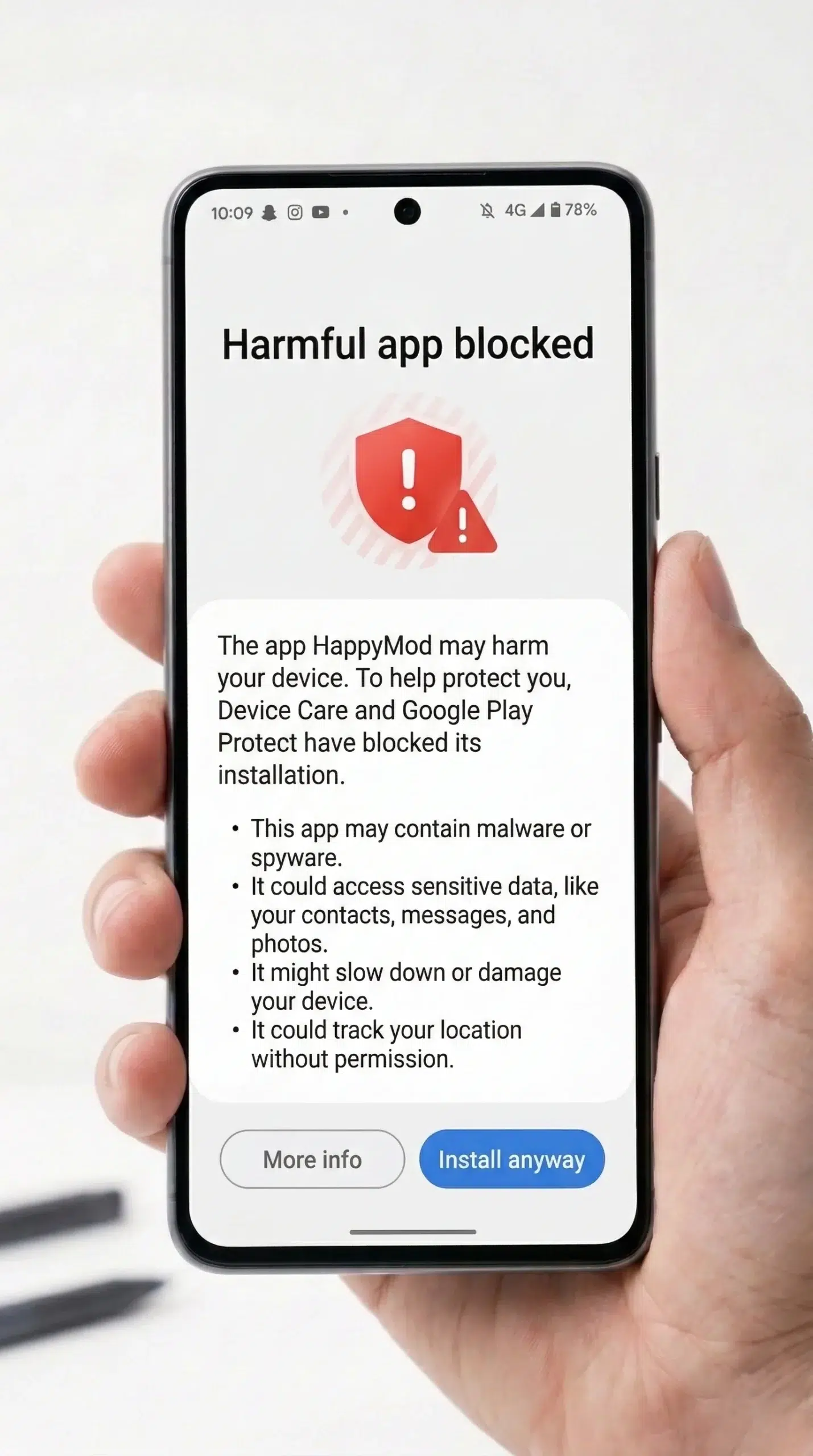
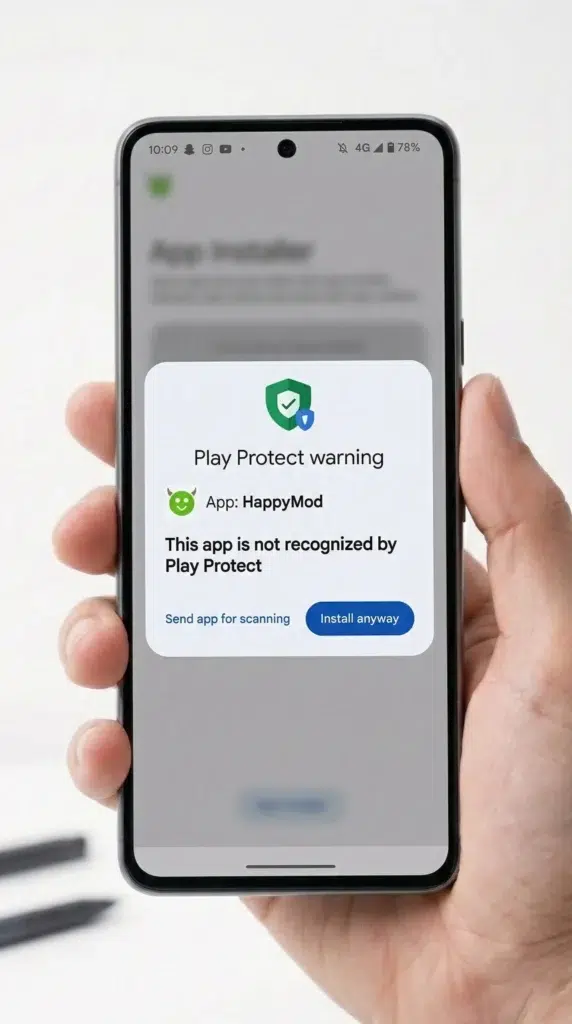
Handle the Google Play Protect warning
Android’s built-in scanner flags any file installed outside the Play Store by default, not only files it has actually found a problem with; tapping “Install anyway” (or the equivalent prompt wording) proceeds past a routine warning, not a confirmed detection.
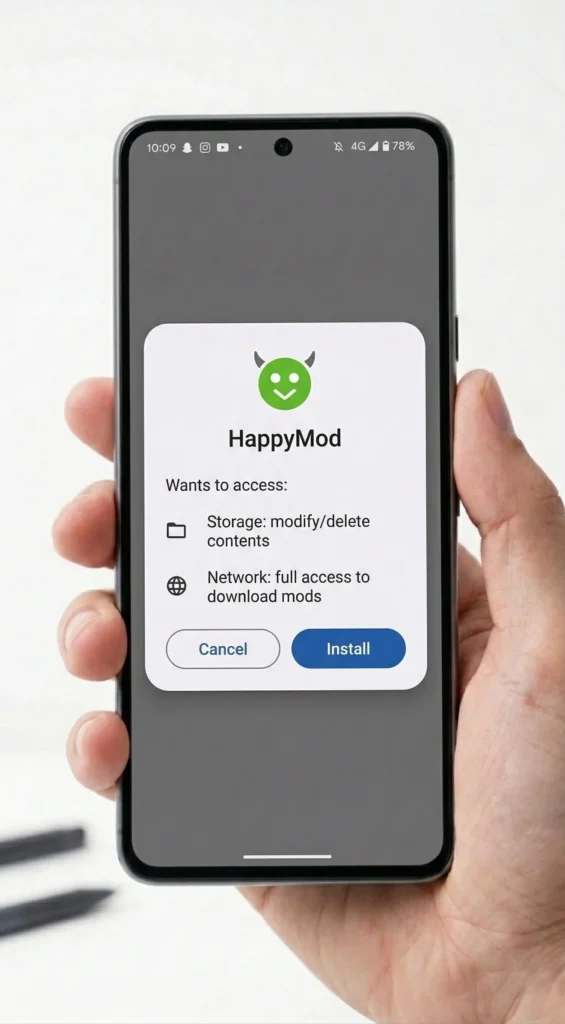
Complete the installation
and grant the Storage and Install Packages permissions — the two the app needs to write downloaded files and install the mods selected inside it. It may also ask to show download-progress notifications.
Launch the application
and confirm the catalog loads.
A file far smaller than the ~20 MB listed above indicates an incomplete download and should be re-downloaded rather than installed.

How Do You Confirm HappyMod Installed Correctly?
If any of these fail, see how to fix “App Not Installed” and parse errors.
Six behaviors confirm a clean install
What Features Does HappyMod Give You After Installing?
Once installed, HappyMod functions as a browsable catalog of community-modified Android app and game files rather than a single product with one fixed feature set — what a reader actually gets depends on which mod they choose to install from inside it, not on the HappyMod app itself.
The platform-level features break down into five categories:
MOD Menu access
A large share of game listings include a built-in in-app menu that lets a player toggle individual modifications on or off after installing that specific mod — rather than a mod being one fixed change, it’s a set of selectable options controlled from inside the modded app itself.
Resource & premium-feature unlocks
The most common modification type removes the paywall on in-game currency, energy, gems, or similar resources, or unlocks a paid app’s premium features without the original purchase. What’s unlocked is set by whoever uploaded that specific mod file, not standardized across the catalog.
Ad removal
Where the original app carries ads, the modded version frequently strips them — this is a per-listing modification, stated (or not) on each mod’s own page rather than guaranteed catalog-wide.
Mod variants per app
The same base app commonly has two or more independently uploaded modded versions, each with a different combination of unlocks and each carrying its own separately tracked working-rate percentage — checking that percentage before installing a specific variant is the only per-mod reliability signal the platform provides.
Download manager
The app includes a manager that supports pausing and resuming a download, queuing more than one download at once, and prioritizing which one completes first — standard functionality for an app distributing files outside a store’s own managed download system.
Browsing the catalog and creating an account aren’t gated behind each other — the catalog is browsable without signing in, and installing a specific mod doesn’t require an account either.
On lower-capacity devices, installing two or more large or resource-heavy modded apps in the same session can accelerate battery drain.
For the safety and risk side of using these features, see whether HappyMod is safe.
What Causes HappyMod Installation Failures?
Two failure patterns account for most installation problems: a signature conflict (Android’s package manager still has a certificate reference from a prior install attempt) and a broken or incomplete file (visibly far smaller than the ~20 MB full size). The HappyMod installation error fixes cover each one: the Package Installer cache-clear sequence for “App Not Installed,” and the file-rename check for parse errors.
Frequently Asked Questions
Does the unknown-sources toggle need to stay on permanently?
No. It can be switched off again immediately after installing; it only needs to be active for the moment of installation itself.
Does the Google Play Protect warning mean the file is unsafe?
Not by itself — the warning triggers automatically for any file installed outside the Play Store, independent of whether that specific file has anything wrong with it. See how to check whether a HappyMod file is safe to evaluate the file itself rather than the warning alone.
How long does installation take?
Under two minutes on a device meeting the stated requirements, not counting download time, which depends on connection speed for a file of roughly 20 MB.
Does installation require a specific browser?
No — any browser or file manager can be granted the unknown-sources permission; the steps above apply the same way regardless of which app downloads the file.
Can the installation be cancelled partway through?
Yes, backing out of the install prompt before tapping “Install” cancels cleanly with no partial install left behind; cancelling mid-installation (after tapping Install) can leave a broken entry that needs a clean uninstall before retrying.
Where to Go Next
For setup on a computer, see the PC installation guide — HappyMod runs on PC through an Android emulator, since it doesn’t ship a native Windows or Mac build. For why no iOS install path exists, see the iOS availability page. For older builds and rollback steps, see the version archive. For a fix to a specific installation error, see the installation errors guide. For the full safety and verification breakdown, see the safety guide.