
CRASH DIAGNOSTICS
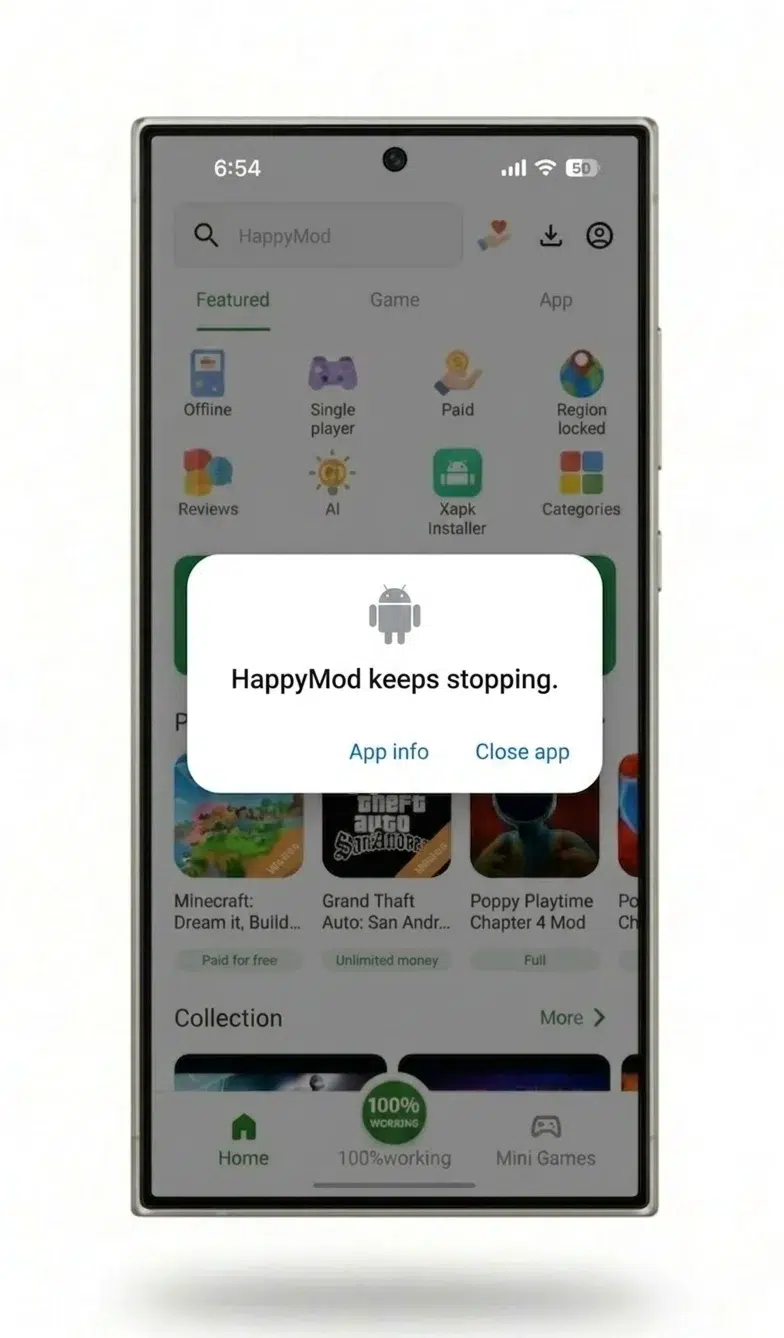
HappyMod Keeps Crashing? Here’s the Fix
HappyMod crashing after a successful install has five distinct patterns, each with a different cause: an immediate force-close, a black screen that never loads, a green-screen flash before closing, a crash after brief use, or a crash that started only after an Android update. Match the exact pattern below to the real fix. These fixes are for post-install runtime crashes — for every other failure type, see the full HappyMod not working diagnostic.

Key Facts
5 crash patterns
Immediate close, black screen, green flash, delayed, post-update
Fastest fix
Clear app cache — resolves most reports
Xiaomi/Samsung
Add to battery-optimization exemption list
File vs device
Unexpected permissions = file problem, not this page
This page covers
Post-install runtime crashes only
Quick Triage Before Diagnosing Further
Three steps resolve most runtime crashes before any pattern-specific diagnosis is needed:
Clear the app cache
Settings > Apps > HappyMod > Storage > Clear Cache. This removes corrupted temporary files without touching downloaded mods or favorites, and it resolves the largest share of crash reports across the patterns below.
Restart the device
A restart frees RAM and stops background processes competing with HappyMod for memory, which matters most on lower-RAM devices.
Confirm the app is updated
An outdated HappyMod build is more likely to conflict with a newer Android release. Update through the in-app prompt or a trusted download source before assuming the device itself is at fault.
If the crash continues after these three steps, match the exact symptom below.
Force-Closes Within Seconds of Opening
The app opens, shows its splash screen, and closes almost immediately, often before the catalog loads. This pattern points to a corrupted cache file from an interrupted previous session — the app tries to read a broken temporary file on launch and crashes rather than loading past it. Clearing cache (Quick Triage, step 1) resolves this in most reports; if it recurs immediately after a fresh cache clear, the app data itself may be corrupted, and Clear Data (a separate setting one step past Clear Cache) resets the app fully, removing locally stored preferences but not the mods already installed on the device.
Black Screen That Never Loads
The app opens to a black screen and stays there rather than closing outright. This is commonly a conflict with a security or system-optimizer app running in the background — a device security app can intercept a sideloaded app at launch and block rendering without generating a visible error. Force-closing HappyMod from the recent-apps view, temporarily disabling any active security/optimizer app, and relaunching resolves this pattern in most reports; the security app can be re-enabled afterward.
Green-Screen Flash Then Close
A brief green flash appears before the app closes. This pattern is reported specifically on devices where the app’s rendering conflicts with the device’s graphics driver or a GPU-intensive app left running in the background (a game, a video app). Fully closing any GPU-heavy app first, waiting 10 seconds for the graphics context to release, then reopening HappyMod resolves this in most reports. It recurs on devices that frequently multitask between graphics-heavy apps without fully closing them between sessions.
Works Briefly, Then Crashes
HappyMod opens and functions normally for a period before closing unexpectedly, without the reader doing anything unusual. On devices with limited available RAM, the operating system reclaims memory from background or lower-priority apps under pressure — HappyMod, holding a large catalog in memory, is a common target for this reclamation, which presents to the reader as a random crash rather than an explicit low-memory warning. Closing other open apps before and during a HappyMod session reduces how often this triggers; on a device that hits this pattern repeatedly, closing all other apps first is the more reliable fix than restarting after each crash.
Started Crashing Only After an Android Update
The app worked normally before a device’s Android version updated, then began crashing afterward. Android has progressively tightened how much background activity and which permissions an app can use without being closed by the system — changes that began significantly with Android 12 and continued through Android 13 and 14. An older HappyMod build written against looser rules can trigger this enforcement and get closed by the operating system rather than crashing on its own. Updating to the current HappyMod build (Quick Triage, step 3) is the direct fix, since a newer build is more likely to have adjusted for the tightened permission and background-process handling on a recent Android version.
Conflicting System-Modification Apps
A separate cause, independent of the five patterns above: apps that modify system-level behavior — patchers, root-management tools, and other apps that alter how Android handles installed packages — can conflict directly with how HappyMod runs, producing crashes that resemble any of the patterns above but trace to a different root cause. Temporarily disabling or force-closing any such app before opening HappyMod isolates whether it’s the actual trigger.
How to Clear Cache on Current Android Versions
The path is the same across current Android releases, with minor label differences by manufacturer:
Open Settings and select Apps
labeled Apps & notifications on stock Android; the label varies by manufacturer skin.
Find and select HappyMod
Select Storage & cache
or Storage, depending on the device.
Tap Clear Cache
This removes only temporary files. Clear Data, a separate option on the same screen, resets the app to a fresh-install state and removes locally stored preferences — it does not delete mods already installed on the device, since those exist as separate installed apps outside HappyMod itself.
On Xiaomi devices running MIUI or HyperOS, and on Samsung devices running One UI, aggressive battery-management settings can also close HappyMod in the background even after cache is cleared. Adding HappyMod to the device’s battery-optimization exemption or memory-protected app list (found under Settings > Battery on both interfaces, worded slightly differently by version) prevents the system from closing it preemptively.
Is This a Device Crash or a File Problem?
Every pattern above traces to the device or the installed app build — cache, RAM pressure, Android-version enforcement, or a conflicting app. None of them involve the installation file itself being unsafe.
A crash with a different signature — appearing immediately after installing a specific mod from an unfamiliar source, alongside unexpected permission requests, unexplained data use, or other apps behaving abnormally — points to a corrupted or tampered installation file instead, which is a separate problem with a different fix. Verifying the file itself, rather than troubleshooting the device, is the right next step in that case; the safety and verification guide covers how to check a file before or after installing it.
Frequently Asked Questions
Does clearing HappyMod’s cache delete installed mods?
No. Clearing cache removes only temporary files. Mods already installed exist as separate apps on the device and are not affected by clearing HappyMod’s own cache or data.
Does HappyMod crash more often on older Android versions?
Older Android versions are less likely to trigger the update-related crash pattern (looser background-process rules), but they carry their own risk on lower-RAM devices, since older hardware ships with less available memory as a rule, not an exception. Neither is uniformly safer — the cause differs by device.
Why does HappyMod crash specifically on Xiaomi or Samsung devices?
Both MIUI/HyperOS and One UI apply more aggressive background battery management than stock Android by default, which can close HappyMod even when the app itself has no issue. Adding HappyMod to the battery-optimization exemption list on either interface resolves this.
Does reinstalling HappyMod fix a crash that cache-clearing didn’t?
Reinstalling has the same effect as Clear Data — it resets the app fully. If Clear Data (a step past Clear Cache) hasn’t resolved the crash, reinstalling is unlikely to add anything beyond that, and the cause is more likely RAM, Android-version enforcement, or a conflicting app rather than the HappyMod installation itself.
How is a device-side crash different from a crash caused by a bad download?
A device-side crash traces to cache, memory, Android-version enforcement, or a conflicting app, and the fixes above resolve it. A crash tied to a corrupted or tampered file shows a different pattern — unexpected permissions or behavior alongside the crash — and needs the file checked instead.
Still Crashing?
For first-install errors, stuck downloads, or update failures, see the troubleshooting diagnostic. For the HappyMod platform overview and safety breakdown, see the hub page.