
DOWNLOAD-STAGE ERRORS
HappyMod Download Stuck? How to Fix It
A HappyMod download fails in four distinct ways, each with a different cause: it never starts and sits at 0%, it starts and then freezes partway through, it gets rejected outright with a “try it later” message, or it sits in the queue without ever beginning. Matching the exact symptom below to its cause resolves it faster than working through a generic list of fixes.

Key Facts
Stuck at 0%
Network block — test connection, VPN, airplane mode
Freezes partway
Storage, connection drop, or server node loss
“Try it later”
A rejection, not a stall — delete before retrying
Stuck in queue
Battery saver or background-data restriction
Downloaded but won’t install
A different, install-stage problem
Why Is the HappyMod Download Stuck at 0%?
A download stuck at 0% has not begun transferring at all, which points to a network-level block rather than a problem with the file itself. Three causes produce this exact symptom: no active data connection reaching the download server, a VPN routing the request through a blocked or filtered path, or the server itself under load and rejecting new connection requests.
Test each in order:
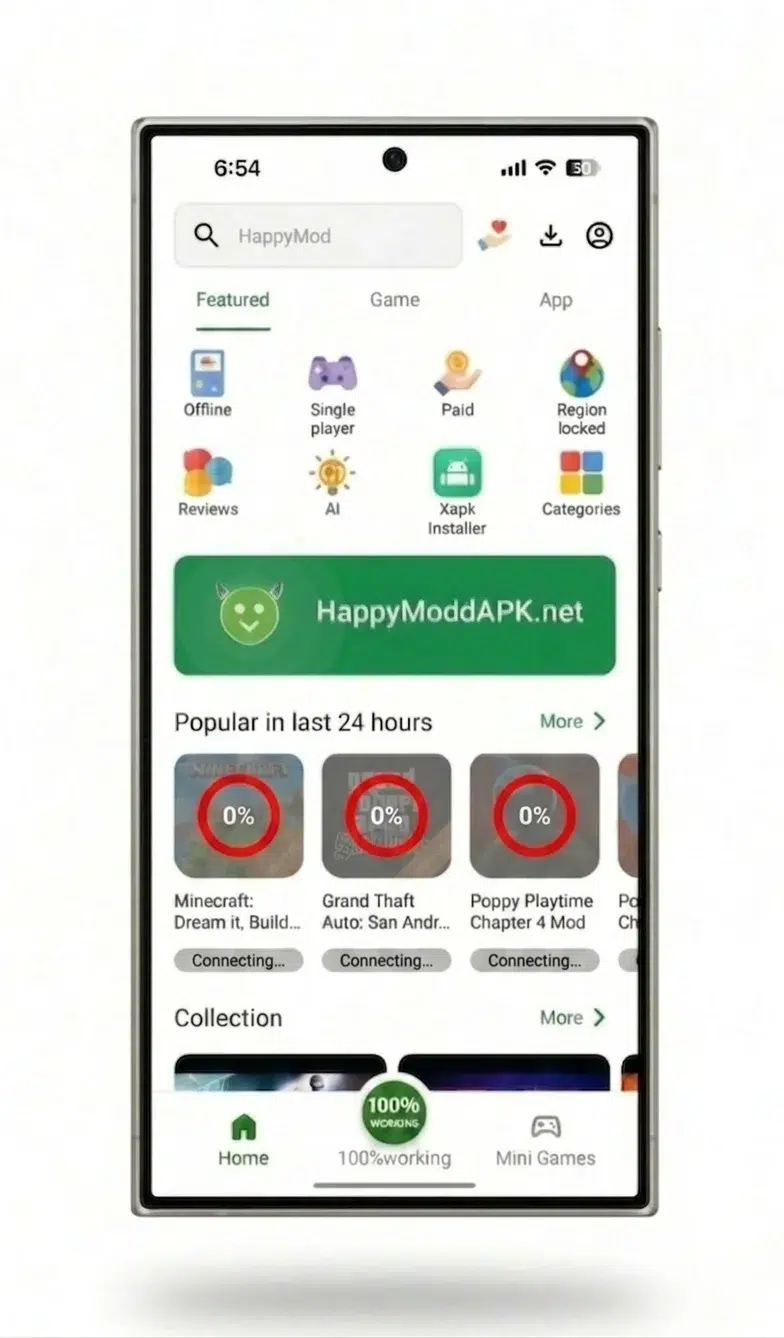
Open a browser and load any website
to confirm the connection itself works, separate from HappyMod.
Disable any active VPN, then retry
a VPN is the single most common cause of a 0% stall, since it can route the download request through a path the server doesn’t accept.
Toggle airplane mode on and off
to force the device to reacquire a fresh connection.
If the connection tests clean and no VPN is active, wait 10 minutes and retry
this is consistent with a temporary server-load condition rather than a device-side fault.
Why Does a Download Freeze Partway Through?
A download that starts, shows real progress, and then stops mid-transfer has a different cause from one that never starts: either the device ran out of storage mid-write, the connection dropped during transfer, or the specific server node delivering that file lost its connection to the device. Each produces the same visible symptom — progress that stalls and doesn’t resume — with a different fix.
Free up storage space beyond the file’s own size before retrying; Android needs working room to write and verify the file, not just space equal to its listed size. Switch from mobile data to Wi-Fi, or the reverse, to rule out an unstable connection. If the freeze happens at the same percentage on a second attempt, cancel the download rather than letting it sit — a frozen transfer rarely resumes on its own, and reinitiating routes the request to a different server path.
What Does “Try It Later” Actually Mean?
“Try it later” is not a stall — it’s an explicit rejection of the download request, and it means retrying the same queued item usually fails again immediately. The message appears when the requested file isn’t currently being served, whether from a temporary server-side issue or a mirror that’s been taken down for that specific mod.
Deleting the failed item from the download list before retrying matters here: tapping the same “try again” button on an already-rejected item repeats the same request against the same unavailable source, which produces the identical rejection. Removing it first and starting a fresh download request gives the app a chance to route to a working source instead of resubmitting the failed one.
Why Does a Download Stay Stuck in the Queue?
A download that never leaves “Waiting for Queue” is not a HappyMod-specific problem in most cases — it’s a restriction on Android’s Download Manager, the operating-system component that actually executes file transfers in the background, separate from HappyMod’s own app interface. Battery-saver mode and background-data restrictions apply to this OS-level component, which is why they block a queued download even while HappyMod itself appears to be open and responsive.
Two settings resolve most queue-stuck downloads:
Turn off battery saver, or add HappyMod to its exception list
battery-saver mode suspends background processes, and Android’s Download Manager runs as one.
Allow background data for HappyMod
Settings > Apps > HappyMod > Mobile Data and Wi-Fi > allow background data. A restriction here stops the Download Manager from executing the transfer even when the app is open and connected in the foreground.
If both are already allowed and the queue is still stuck, clearing HappyMod’s cache resets the state the app is using to track that queued item, without removing any downloaded mods or favorites.
Does a VPN Cause Download Failures, or Fix Them?
In most cases, an active VPN is the cause of a download failure, not the fix — it routes the request through a path the download server doesn’t recognize or accept, producing the same 0% stall covered above. Disabling it before retrying resolves the majority of VPN-related failures.
A smaller number of cases run the opposite direction: an internet provider restricting or slowing large file transfers from known APK-hosting domains shows up as a download that stalls partway through regardless of signal strength or storage. In that specific case, a VPN routes around the restriction rather than causing it. The distinguishing test: if the same download stalls on both home Wi-Fi and mobile data, the cause is provider-side rather than VPN-related, and a VPN becomes the fix rather than something to disable.
Is a Full Storage Device Causing the Failure?
A device needs free space beyond the file’s own listed size — working room for the download to write into before it moves the finished file into place. A download that fails after showing real progress, rather than stalling immediately at 0%, is more likely a storage issue than a network one. Clearing unused apps or media, then retrying, resolves this directly; the download does not need a different network or a VPN toggle if storage was the actual constraint.
Downloaded But Won’t Install — Is That a Download Problem?
No — a file that finishes downloading and then fails to install is a separate failure stage. The download itself succeeded; the install step has its own causes — see the HappyMod not working diagnostic to route to the right fix. Confirming which stage failed — a progress bar that never completed, versus a completed download that won’t open — points to the right fix rather than retrying download-stage steps on an install-stage problem.
Frequently Asked Questions
Does Wi-Fi or mobile data affect HappyMod downloads more?
Wi-Fi is the more stable choice for larger mod files in most cases, since mobile data is more exposed to provider-level throttling and signal variability mid-transfer. A download that fails consistently on mobile data but completes on Wi-Fi points to a connection-quality or provider issue rather than a HappyMod-side fault.
Is there a fixed limit on how many downloads HappyMod can run at once?
HappyMod doesn’t document a fixed limit on concurrent downloads. If 2 or more items appear stuck in the queue at once, canceling the lower-priority ones and retrying the one actually needed clears the backup.
Does a paused download resume, or restart from zero?
A download interrupted mid-transfer does not resume from its exact stopping point in most cases — retrying after a freeze most often restarts the transfer. This is why freeing storage or switching networks before retrying matters more than simply tapping retry repeatedly on the same stalled item.
Why does a download need storage permission after it finishes?
The finished file has to be written to the device’s storage before installation can begin, which requires Android’s storage permission to be granted to HappyMod. A completed-looking download that never proceeds to install often traces back to this permission being denied rather than the transfer itself failing.
Can a download fail without showing any error message?
Yes — a download can sit indefinitely with no visible error, which looks identical to a working transfer that’s simply slow. Checking actual elapsed time against the file’s size is the practical way to tell the two apart: 5 minutes with no percentage movement at all on a stable connection means the download has failed silently, not that it’s simply taking a while.
Still Won’t Download?
For every other HappyMod failure type — launch crashes, first-install errors, and update failures — see the full troubleshooting diagnostic. For the HappyMod platform overview and safety breakdown, see the hub page.