
APK VERIFICATION GUIDE
How to Check if an APK File Is Safe
A downloaded APK file can be checked two separate ways before installation: a SHA256 hash comparison confirms the file wasn’t altered after it was published, and a VirusTotal scan checks the file’s contents against 65+ antivirus engines at once. Neither check alone answers “is this safe” completely — together they confirm the file is both unmodified and free of known malware signatures at scan time. The steps below work for any downloaded APK, applied here to a HappyMod installer.

Key Facts
Two checks
SHA256 hash + VirusTotal scan
Hash confirms
File wasn’t altered after publishing
VirusTotal confirms
No known malware signatures at scan time
Genuine threshold
5+ detections from major engines
Time required
Under two minutes
What a SHA256 Hash Actually Confirms
Generating the hash of a downloaded file and comparing it against the hash below confirms one specific thing: the file on the device is byte-identical to the file that was published.
Current HappyMod APK SHA256 hash (v3.4.6):
3d7de820f6988f27acd3e50b61a68c7d3010e0201dfe2336b254c43e5eac728f
A matching hash does not, by itself, confirm the original file is free of malware — it only confirms nothing was altered in transit or by a substitute download source. That’s a separate question, answered by the VirusTotal step below and by the platform-file verdict on whether HappyMod is safe. Both checks matter; neither substitutes for the other.
How to Generate the SHA256 Hash of the Downloaded File
The exact command differs by operating system, but the output is always the same: a 64-character string of letters and numbers.
On Windows
Open Command Prompt and run:
certutil -hashfile [downloaded-filename].apk SHA256
Replace [downloaded-filename] with the actual file name. The output prints the 64-character hash on its own line, with CertUtil: -hashfile command completed successfully beneath it.
On Mac
Open Terminal and run:
shasum -a 256 ~/Downloads/[downloaded-filename].apk
Adjust the path if the file wasn’t saved to the default Downloads folder. The output is the 64-character hash followed by the file path.
On Android
A hash-checker app installed from the Play Store can generate the SHA256 value directly on the device — select the downloaded APK file from the Downloads folder and the app displays its hash. This avoids transferring the file to a computer just to check it.
How to Scan the File With VirusTotal
VirusTotal is a Google-owned file-scanning service, independent of HappyMod, that runs a submitted file against 65+ antivirus engines simultaneously and returns a combined detection count. Two ways to use it:
Direct upload
Submit the APK file itself at virustotal.com. Works for any file up to VirusTotal’s own size limit; a full scan across all engines usually completes in under a minute.
Hash-only lookup
Paste the SHA256 string generated in the previous step into VirusTotal’s search bar instead of uploading the file. This returns a result instantly if that exact file has been scanned before, without re-uploading a large APK.
Both methods return the same detection-count format: a number out of the total engines used, for example “0/65.”
How to Read a VirusTotal Result Correctly
The raw number needs interpretation, not just a glance:
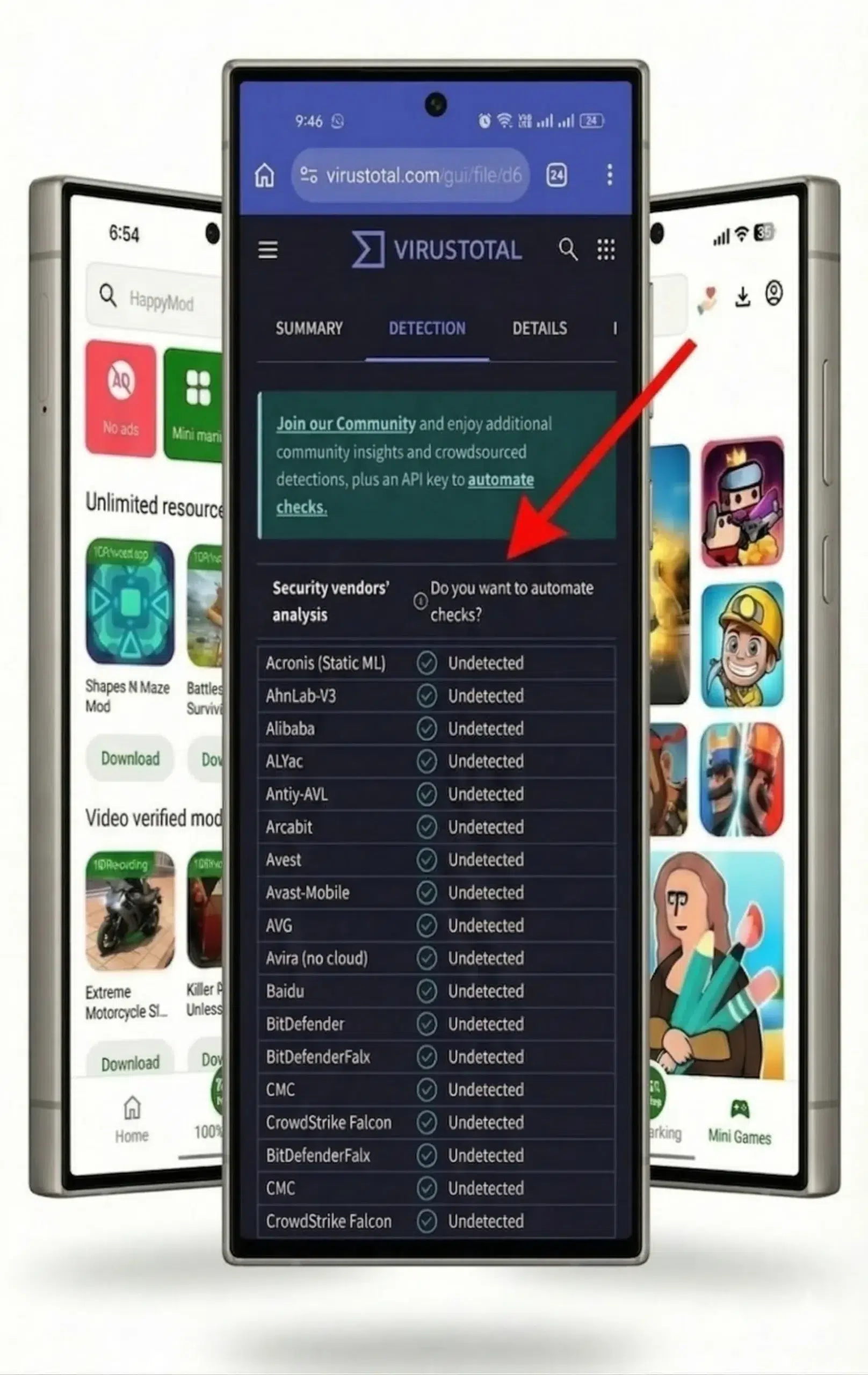
0 detections
No engine flagged the file. Read as clean.
1-2 detections
Especially from lesser-known or purely heuristic engines, commonly indicate a false positive rather than a confirmed threat. Heuristic engines flag unusual packaging patterns — patterns shared by APKs distributed outside the Play Store as a category, sideloaded and repackaged files alike — not necessarily malicious code. A false-positive flag on one obscure engine, with every major engine clean, is not treated the same as a genuine threat signal.
5+ detections
Particularly from major, well-known engines, is treated as a genuine-threat pattern. At this threshold, the file should not be installed regardless of how the source describes it.
Between 2 and 5 flagged engines sits a gray zone: check which specific engines flagged the file (VirusTotal lists each one by name) and whether they’re major engines or smaller heuristic-only scanners before deciding.
What to Do If the Hash Doesn’t Match
A mismatched hash means one of two things: the download was corrupted in transit, or the file isn’t the one the published hash was generated from. Both are real possibilities — a mismatch isn’t automatically harmless, and it isn’t automatically malicious either.
Delete the mismatched file
Don’t install it while troubleshooting.
Clear the browser’s download cache
A partial or corrupted download is the more common cause of a first-time mismatch.
Re-download the file from the same source page
and generate the hash again.
If the second hash still doesn’t match the published value, stop
Don’t install the file. A repeated mismatch after a clean re-download is a stronger signal of a substituted or altered file than a first-attempt mismatch, which is more often a transfer error.
Frequently Asked Questions
What does a 0/65 VirusTotal result mean?
None of the 65+ antivirus engines VirusTotal checked the file against flagged it as containing a known malware signature at the time of the scan. It does not mean the file was reviewed line-by-line by a human — it’s an automated signature and heuristic check run across 65+ separately maintained antivirus engines at once.
Does a matching hash and a clean VirusTotal scan mean the file is completely safe?
They confirm the platform installer file specifically: unaltered since the hash was published, and free of known malware signatures at scan time. They don’t extend to individual mods downloaded through the catalog afterward — catalog-mod safety is a separate question, covered in the HappyMod safety guide.
Can the SHA256 hash be checked without a computer?
Yes — a hash-checker app installed from the Play Store reads the file’s SHA256 value directly on an Android device, without needing to transfer the file anywhere first.
What if VirusTotal flags 1-2 engines but not the rest?
Check which specific engines flagged the file. A flag from one or two lesser-known, heuristic-only engines while every major engine returns clean is commonly a false positive tied to how sideloaded APKs are packaged as a category, not a confirmed threat by itself. Five or more flags, especially from major engines, is the threshold treated as a genuine concern.
Where This Fits
These steps confirm the platform installer file specifically — not individual catalog mods, which aren’t scanned or hashed per listing the same way. For the full safety picture, including catalog-mod risk, permissions, and account-ban tiers, see is HappyMod safe. For the HappyMod platform overview, see the hub page.