
How to Install HappyMod on Android – Latest Version Guide
This page shows how to install the HappyMod APK on Android devices using the correct sideloading process. Muhammad Sheraz tested the installation on Samsung, Xiaomi, OnePlus, and Realme devices to document exact steps across Android versions.
Android 5.0 minimum. Testing confirms stable performance on Android 8.0 through Android 14. Devices running Android 5.0 to 7.1 accept the APK file but experience catalog loading issues. Download the verified APK from our homepage before proceeding.
Reviewed by: Muhammad Sheraz | APK Reviewer, HappyModdAPK.net
Test Devices: Samsung Galaxy A54 (One UI) | Redmi Note 12 (MIUI) | OnePlus 12 (OxygenOS) | Realme 11 Pro (Realme UI)
What are the system requirements for HappyMod?
HappyMod installation requires four specific conditions on Android devices. Setup needs 60 MB of free storage, a battery level above 20%, an active internet connection, and standard firmware without root access.
Android emulators install the application on Windows desktop computers. The HappyMod for PC page documents the specific desktop emulation process. The application utilizes the Android APK file format. The HappyMod iOS page explains the Apple ecosystem restrictions and identifies fake iOS distribution sites.
How do you enable unknown sources on Android?
Android requires specific unknown sources permissions to install third-party APK files. Android 8 and newer versions require a per-app permission grant for the specific downloading browser.
Android 8.0 and 9.0
Settings path: Settings > Apps and Notifications > Special App Access > Install Unknown Apps. Select the browser used for the download and toggle the permission on. Some Android 9 builds place the setting under the Security menu.
Android 10 and 11
Settings path: Settings > Apps > Special App Access > Install Unknown Apps. Select the downloading browser and toggle the permission on. Android 11 resets permissions for inactive applications after 90 days. Android requires manual permission reactivation during reinstallations.
Android 12 and 13
Settings path: Settings > Privacy > Special App Access > Install Unknown Apps. Google moved the specific setting into the Privacy menu on modern Android releases.
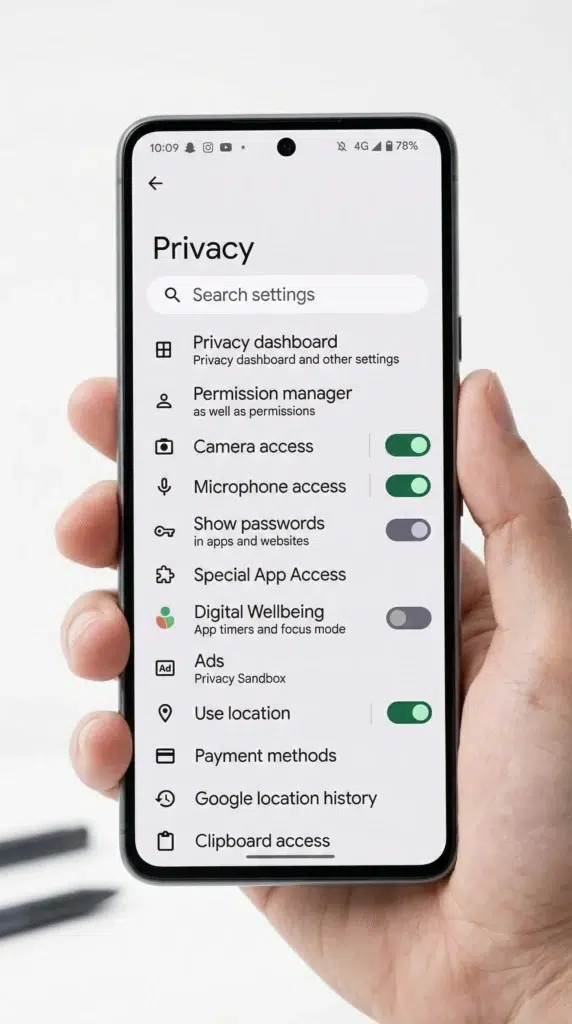
Android 14
Settings path: Settings > Privacy > Special App Access > Install Unknown Apps. Android 14 adds an enhanced install confirmation dialog. Tap the install button to proceed past the secondary screen.
What is the unknown source path by manufacturer?
Android manufacturers rename system settings menus and add custom security layers. The exact path to enable unknown sources depends on the specific device interface.
Samsung One UI
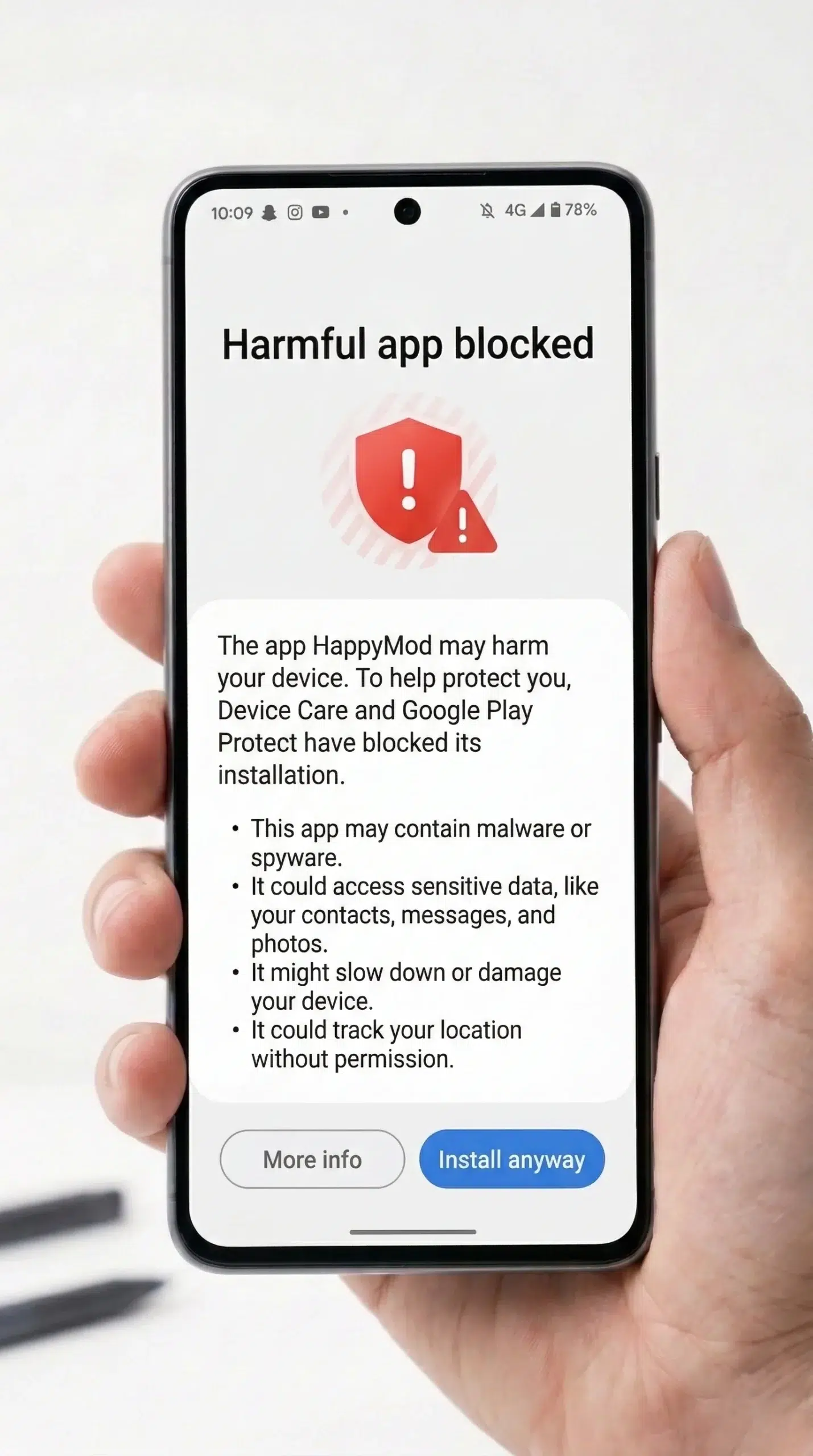
Settings path: Settings > Apps > Special Permissions > Install Unknown Apps. Samsung displays a blocked application screen during sideloading. Tap the more information button and select install anyway to proceed. The built-in Knox security layer flags sideloaded files, but the installation does not void the device warranty.
Xiaomi MIUI and HyperOS
Settings path: Settings > Privacy Protection > Special Permissions > Install Unknown Apps. Xiaomi devices display a second confirmation screen. Tap the confirmation button to activate the permission. The built-in Security application runs an automated scan before the standard Android installation prompt appears.
OnePlus OxygenOS
Settings path: Settings > Privacy > Special App Access > Allow. OxygenOS replaces the phrase “unknown apps” with the word “allow” on current firmware versions.
Realme UI
Settings path: Settings > Additional Settings > Privacy > Install Apps from External Sources. Realme UI uses the phrase “external sources” instead of unknown sources.
How do you install the HappyMod APK?
Install HappyMod by enabling unknown sources, opening the downloaded APK file, accepting the Google Play Protect warning, and completing the Android installation prompt. The complete sequence requires four specific actions.
Before installation, verify the downloaded APK file. The HappyMod APK verification page explains how to check the SHA256 cryptographic hash.
Step 1 – Locate the downloaded file
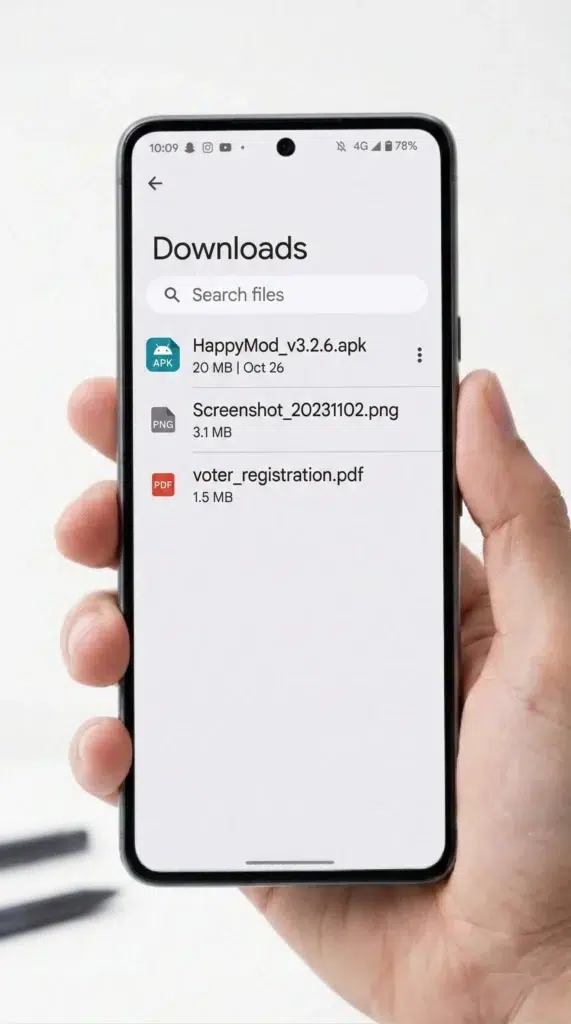
Open the device file manager. Access the Downloads folder. The latest stable release is a 20 MB APK file. Smaller files indicate an incomplete browser download.
Step 2 – Tap the APK file
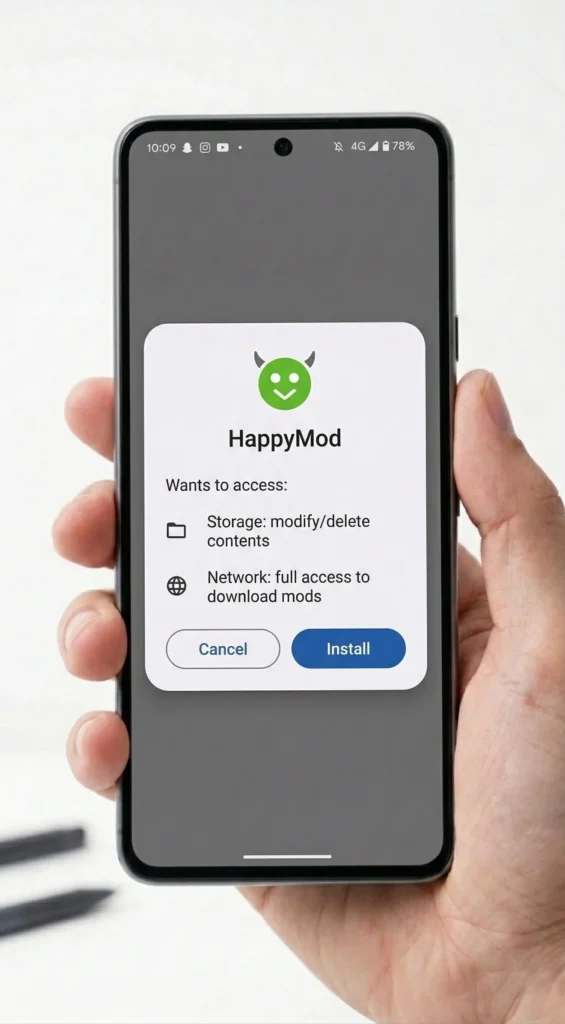
Tap the APK file. Android opens the standard installation prompt. Most devices show this screen immediately after tapping the APK. The screen displays an install button and a cancel button. Tapping cancel leaves the downloaded file intact in the storage folder.
Step 3 – Handle the Google Play Protect warning
Google Play Protect flags all unrecognised sideloaded applications. The warning screen appears because the file lacks Google Play Store certification. Tap the install anyway option to bypass the warning.

Step 4 – Complete the installation
The operating system verifies the package signature and writes the application data to storage. This step usually takes less than a minute.
Step 5 – Launch the application
Open the application from the device app drawer. The software requests storage permission and install packages permission. Grant both permissions to enable catalog downloads. Devices requiring older software builds can access the HappyMod old versions page.
How do you confirm HappyMod installed correctly?
A successful installation triggers six verifiable software behaviors confirming system compatibility.
What causes HappyMod installation failures?
Specific system errors block the Android installation process. Identifying the exact failure message determines the required troubleshooting protocol.