
How to Check If an APK File Is Safe – VirusTotal & SHA256 (2026)
Android users should verify APK files before installation to confirm the software remains unmodified. This page documents the exact VirusTotal and SHA256 cryptographic verification process.
Once the file passes verification, execute the setup sequence detailed in the complete How to Install HappyMod Android page. Download HappyMod APK (verified latest version) directly from our homepage to bypass manual testing.
Reviewed by: Muhammad Sheraz | APK Reviewer, HappyModdAPK.net
Verification performed on: Samsung Galaxy A54 (One UI) | Redmi Note 12 (MIUI) | OnePlus 12 (OxygenOS) | Realme 11 Pro (Realme UI)
Quick Verification Flow
How to check APK safety using quick steps:
- Upload the downloaded file to VirusTotal.
- Check the detection score.
- Compare the SHA256 cryptographic hash.
- Install the application only if both security checks pass.
How to Use VirusTotal to Check an APK
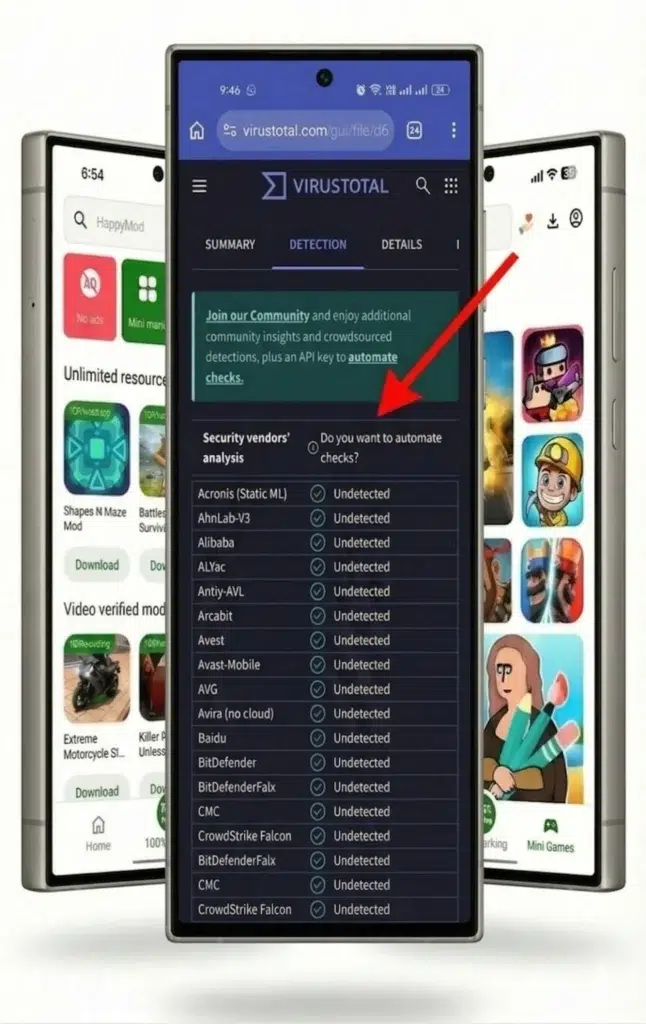
Android users check APK safety by uploading the downloaded file to the VirusTotal website. The platform scans the application against 65+ independent antivirus engines simultaneously and returns a combined detection score.
A zero detection score indicates no known threats were detected at the time of scanning. Security tools detect known threats, but they cannot guarantee that all risks are eliminated.
On Your Android Phone:
- Open a mobile browser and navigate to virustotal.com. The browser interface processes APK files more efficiently than the native application.
- Tap “Choose file.” The Android system opens the file picker.
- Navigate to the Downloads folder and select the downloaded APK file.
- Keep the browser open and the screen active. The automated scan completes in under 60 seconds.
- Read the fraction at the top of the result page (e.g., “0/65+”). The first number represents flagged detections. The second number represents total scanning engines.
On Windows or Mac:
Access virustotal.com via a desktop browser, click the “Choose file” button, and upload the APK from the local hard drive. The desktop scan results match the mobile interface exactly.
For maximum safety, combine VirusTotal results with SHA256 verification rather than relying on a single method.
How to Verify the SHA256 File Fingerprint
Every Android package generates a unique 64-character SHA256 cryptographic hash. Verifying file integrity involves comparing the downloaded file hash against the official developer hash. A matching hash confirms the file has not been altered since the original release.
Step 1 – Generate the local hash
Step 2 – Compare the results
Open the HappyModdAPK.net and locate the published SHA256 cryptographic string. Compare the published string against the locally generated string. An exact match confirms the file is genuine. If the hashes match, the installation can proceed, or download the verified version directly from our website.
How to Read VirusTotal Scan Results
The VirusTotal interface displays a ratio showing flagged detections versus total engines checked. A zero score indicates a clean scan. One or two flags often represent false positives. Five or more flags indicate a confirmed security threat.
Scenario 1 – The first number is 0
Zero engines flagged the file. Every participating antivirus engine returned a clean status. The file passes the initial security check.
Scenario 2 – The first number is 1 or 2
Antivirus engines occasionally flag unrecognised files as suspicious out of caution. This pattern-match behavior triggers a false positive. Look at the specific flag label. “Suspicious” or “HEUR” labels indicate generic pattern matches. Specific threat names like “Trojan” require file deletion. One or two generic flags on an otherwise clean 65+ engine scan typically represent false positives.
This is the most common situation and does not usually mean the file is unsafe.
Scenario 3 – The first number is 5 or higher
If this happens, it is best to delete the file immediately. Five independent engines flagging the identical file indicates a genuine threat signature.
What to Do If the Fingerprint Does Not Match
A mismatched SHA256 hash indicates a corrupted download or a modified file. If this happens, it is best to delete the mismatched file, clear the browser cache, and re-download the package directly from our website .